Apps in BrynQ
Apps in BrynQ

An app is another system BrynQ can connect to, for example HR or Payroll systems. Activate it, then connect your access to that system in the interface
Using apps - quick guide
- activate app: so BrynQ can use it in your setup
- Connect your account: in the interface, under Authorization

Step 2 requires your access to that system (Afas, Nmbrs, HiBob, etc.), so not your BrynQ login
When do I need this?
When BrynQ should move data between systems, so when setting up a new interface or using a template.
When setting up a new interface, you will be prompted to activate the required apps.
Manual management of apps:
Step 1: Activate the app
Apps are not activated by default, usually you are prompted to activate an app.
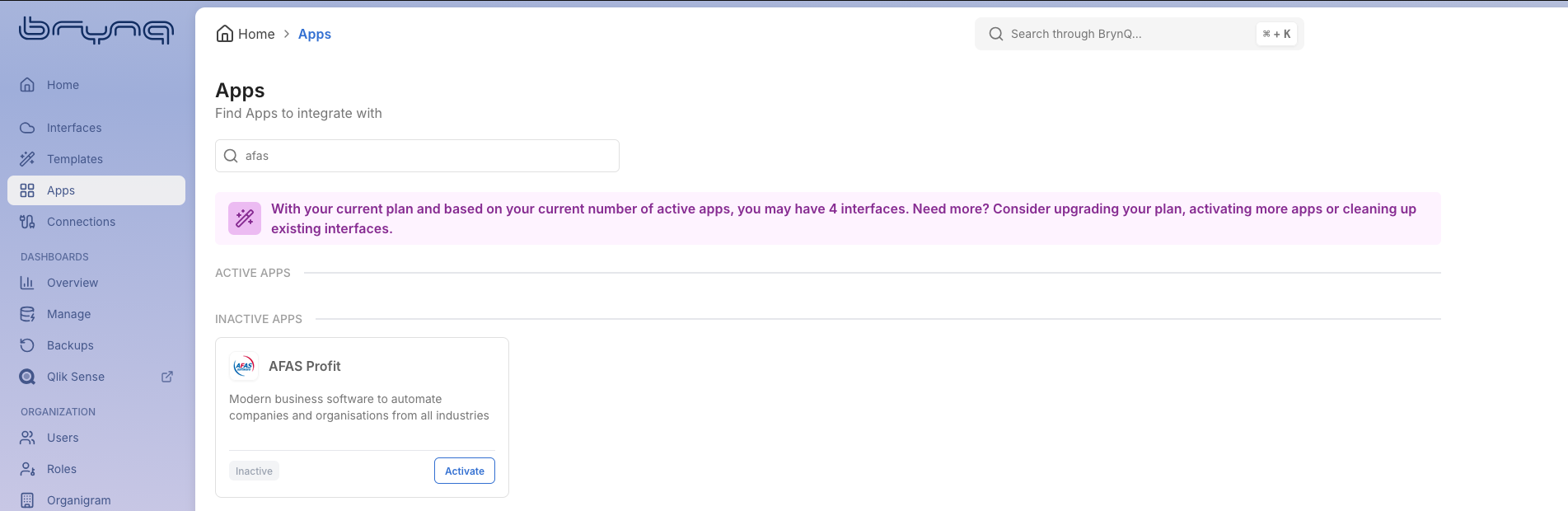
If not prompted to activate an app by Brynq, go to the Apps section. Here you can manage the activations of your apps.
Navigate to the right app, pick the app that matches the system name you use at work.
Click activate.
Click activate.
Step 2: Connect your account

this is handled at the interface level - each interface needs its own set of permissions, there is no general app login
Open your interface → Authorization → follow the steps.
What you enter depends on the app:
- Sign in to that system (you may see its own login screen), or
- Paste a key or token from that system
Either way: access for that system, not BrynQ.
Good to know
Apps in use can't be deactived off (it would break live interfaces)

Can't activate? Plan or permissions related? Ask your BrynQ contact!